Design Tab
The Design tab is the designer's space. It's where the look of the garment gets defined, the pattern team gets briefed, samples are requested and tracked, and the fabric is picked. By the time this tab is done, the rest of the factory knows what to build and what to build it from.
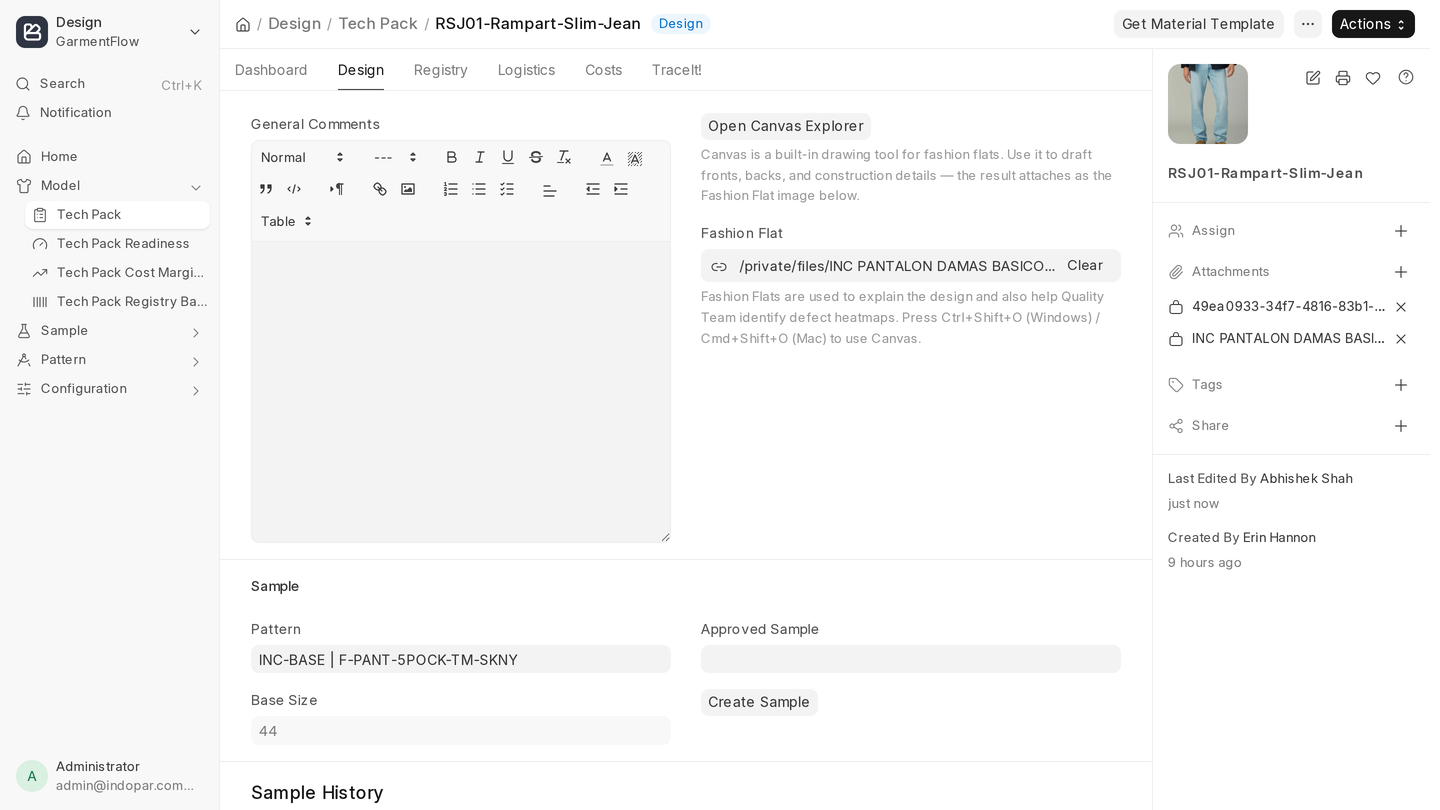
The tab is organized into three sections, top to bottom: design notes and the fashion flat, the Sample section in the middle, and Fabric at the bottom.
Design notes and the fashion flat
Two things happen at the top of the tab: you describe what you want, and you show what it looks like.
General Comments. A free-form editor for everything the rest of the team needs to know — construction notes, fit intent, references. You can paste reference images directly into it. When you later hit Create PMR, whatever's in General Comments seeds the first comment on the Pattern Modification Request, so if you know you're about to brief the pattern room, write General Comments like a brief.
Fashion Flat. The technical drawing of the garment — clean line work showing fronts, backs, and any construction detail that matters. Two ways to put one on the Tech Pack:
- Open Canvas Explorer — our built-in vector tool. Save the Tech Pack first, then click the button (or press
Cmd+Shift+O/Ctrl+Shift+O). Draw the flat and it attaches to this field. See Fashion flats and Canvas Explorer for the walkthrough. - Upload an existing image — if you already have a flat from elsewhere, attach it to the Fashion Flat field directly.
If you link a Pattern that already has a design image attached, that design auto-fills the Fashion Flat for you on the next save.
Sample
This section is the loop between design intent and a physical garment: link or commission a pattern, request samples, iterate, and pick the one that gets approved.
Pattern. If a pattern already exists for this style — a sister fit, a reorder, a previously validated block — link it. The Create PMR button disappears the moment you do, because there's nothing for the pattern room to make.
Create PMR. When no pattern exists yet, click this. It creates a new Pattern record and a Pattern Modification Request addressed to the pattern team, using your General Comments as the initial brief. One prerequisite: the Size Table on the Tech Pack's dashboard must be set first — without it, the pattern can't be drafted to scale.
Base Size. Appears once a Pattern is linked. It's the size the pattern was drafted at, typically a middle-of-range size that grades cleanly up and down.
Create Sample. Visible only after a Pattern is linked. Clicking it opens a dialog listing the variants you've already added on the Logistics tab. Pick which variants you want made — one Sample document is created per selected variant, sharing this Tech Pack's pattern, fabric, and base size. (Samples are always made at the base size; size grading is verified later, not at sampling.)
Approved Sample. When a sample passes review, come back and link it here. This is the physical reference the production floor matches against — and the document everyone returns to when a brand later asks "does this match what we approved?"
Sample History. The horizontal timeline below the sample fields shows every sample ever made from this Tech Pack, in date order, with status. It reads the iteration story: which rounds were rejected, which one was finally approved. Each sample gets a version stamp (M1, M2, M3…) that counts up across all variants and all rounds, so the timeline tells you the order in which they were made. Rejections can come from anywhere — a fit issue points back to the pattern, a stitching or wash issue points to a service, and sometimes it's something else entirely. The timeline lets the next person on the project see the journey instead of just the destination.
A note on reusing patterns
Create PMR exists only for cases where the pattern doesn't yet exist. For reorders, sister styles in the same fit block, or any case where the pattern has already been validated, link the existing Pattern directly and skip the PMR. The pattern room appreciates not being asked to redraft what they already drafted.
Fabric
Pick the Fabric for this style and the specs fill in automatically:
- Width — usable width of the fabric.
- Power — stretch and recovery percentage, relevant for knits, lycra, and athleisure.
- Shrinkage on X — lengthwise shrinkage (warp direction), measured after wash.
- Shrinkage on Y — crosswise shrinkage (weft direction).
These values are the canonical fabric specs from the Fabric master. You can override any of them on this Tech Pack if this specific style genuinely needs something different — a narrower usable width because of the marker, a tighter shrinkage tolerance for a particular brand. As a rule, set canonical values on the Fabric master and override on the Tech Pack only when the style truly demands it. Override-by-default is how a fabric library stops being trustworthy.
What to do next
With the design captured, the pattern in motion, and the fabric set, move to the Logistics tab to lay out sizes, color variants, raw materials, and the BOM.