Tech Pack
A Tech Pack is the single source of truth for a style. Every fabric, trim, size, color, measurement, cost, and barcode that defines a garment lives here. Every Sample, Production Order, and Production Batch that ever comes from that style points back to it.
Tech Pack works in states to mimic a traditional Garment Factory. Starting of in Commercial state and moves through Design → Approval → Production Ready as the spec firms up. Along the way, designers, merchandisers, and the production team each contribute the parts of the spec they own. By the time it reaches Production Ready, anyone in the factory should be able to open it and know exactly what they're making.
Getting there
Hit Cmd + K on Mac or Ctrl + K on Windows, type tech pack, and pick Tech Pack List. Or open Desk → GarmentFlow → Design and click the Tech Pack card.
To create a new one, click + Add Tech Pack.
Main Tabs
The Tech Pack form is organized into six tabs, and each one has its own page in this documentation. They're meant to be filled in roughly left-to-right as the spec matures:
- Dashboard — model name, classification, ownership. The "what is this" header that gives the rest of the form its identity. (Covered here in the principal page.)
- Design — fabric specs, base pattern, fit, approved sample, the fashion flat. The designer's tab.
- Logistics — sizes, color variants, raw materials, services, and the Bill of Materials. The "what does it take to make it" tab.
- Registry — barcode generation and registry. Required before production prints labels.
- Costs — currency, costs, markup, margin, selling rate. The commercial tab.
- TraceIt! — the garment's public Digital Product Passport: QR code, eco rating, certifications. The tab the shopper eventually sees.
- Bundle Builder — merge two or more finished Tech Packs into sellable kits (shirt + pant, a uniform set).
And one process that cuts across them all:
- Tech Pack workflow — the Commercial → Design → Approval → Production Ready flow, who acts at each state, and what On Hold / Rejected / Archived actually mean.
Dashboard Tab
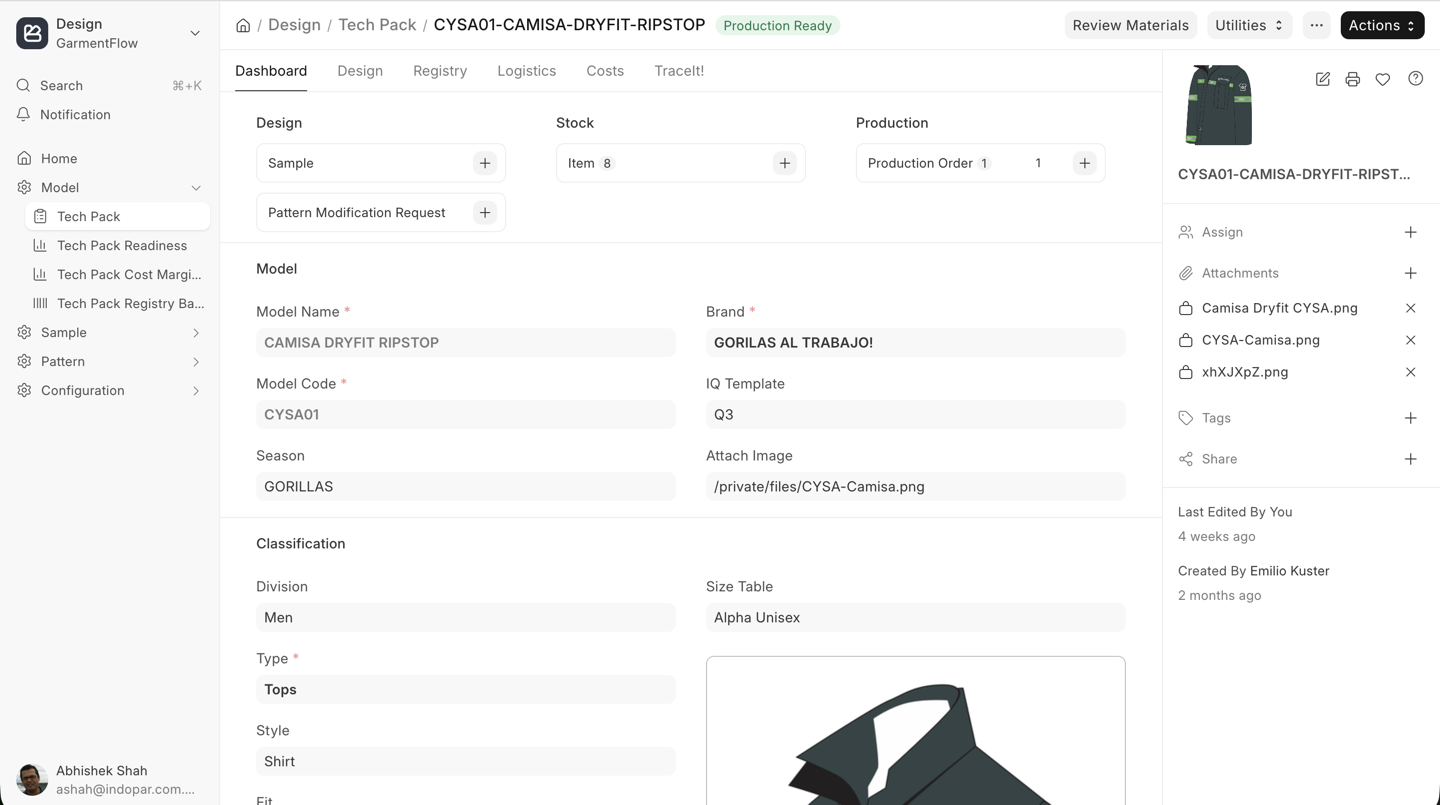
The Dashboard tab is the form header — everything you see before you click into another tab. It's three sections:
Model. The style's name and code. The code is what travels with the Tech Pack onto every downstream document, so pick a convention and stick to it (most factories use a brand prefix plus season plus a sequence number).
Classification. Brand, Division, Fit, Type, Style. These are all design masters, and they're what make Tech Pack reports useful — you can slice your portfolio by brand, by division, by fit profile.
Ownership. Customer (if the style is for a specific brand client), Company (the legal entity producing it), and the target Delivery Date. The delivery date is what the Tech Pack Readiness report sorts by, so keep it honest.
A note on copying
Once you have a Tech Pack you're happy with, the fastest way to start the next one is the Duplicate action from the menu. A reorder with a new colorway, a sister style in a different fit — all of these are small edits to a copy, not new specs from scratch.
What to do next
Open the Design tab and start with the fabric and base pattern. From there the form fills itself in tab by tab.