Production App
There's an app at /garmentflow/production built specifically for the people who don't sit at a desk. Line supervisors with a tablet on a stitching line. A mechanic standing next to a stopped machine. A receiving clerk standing next to a delivery.
The Frappe Desk works on a phone — sort of — but it wasn't designed for it. The Production App was. Big touch targets, simple navigation, fast in low-light factory floor conditions, works offline-tolerant, installs to a home screen like a native app.
The cutting room now has its own app rather than a tab in this one. See Cutting App.
Who it's for
Three audiences:
- Line supervisors running Production Batches — they need to start operations, record handoffs, post end-of-shift activity, all without leaving the floor.
- Maintenance and mechanics — browsing Work Centers and reporting a machine down where it happened, instead of walking to a desk to do it.
- Sampling room working on Samples — recording sample status changes and capturing measurements.
Anyone managing the work from a desk (production managers, planners, accountants) is better served by the full Desk. The App isn't a lesser Desk — it's a different tool for a different job.
Installing it on a device
Visit https://your-site.com/garmentflow/production on the device's browser, then:
- iOS Safari: Share → Add to Home Screen.
- Android Chrome: ⋮ menu → Install app (or Add to Home Screen).
Once installed, it launches like a native app. No app store, no install package, no update cycle — when you ship a new version, the next time the supervisor opens the app, they get it.
What's inside
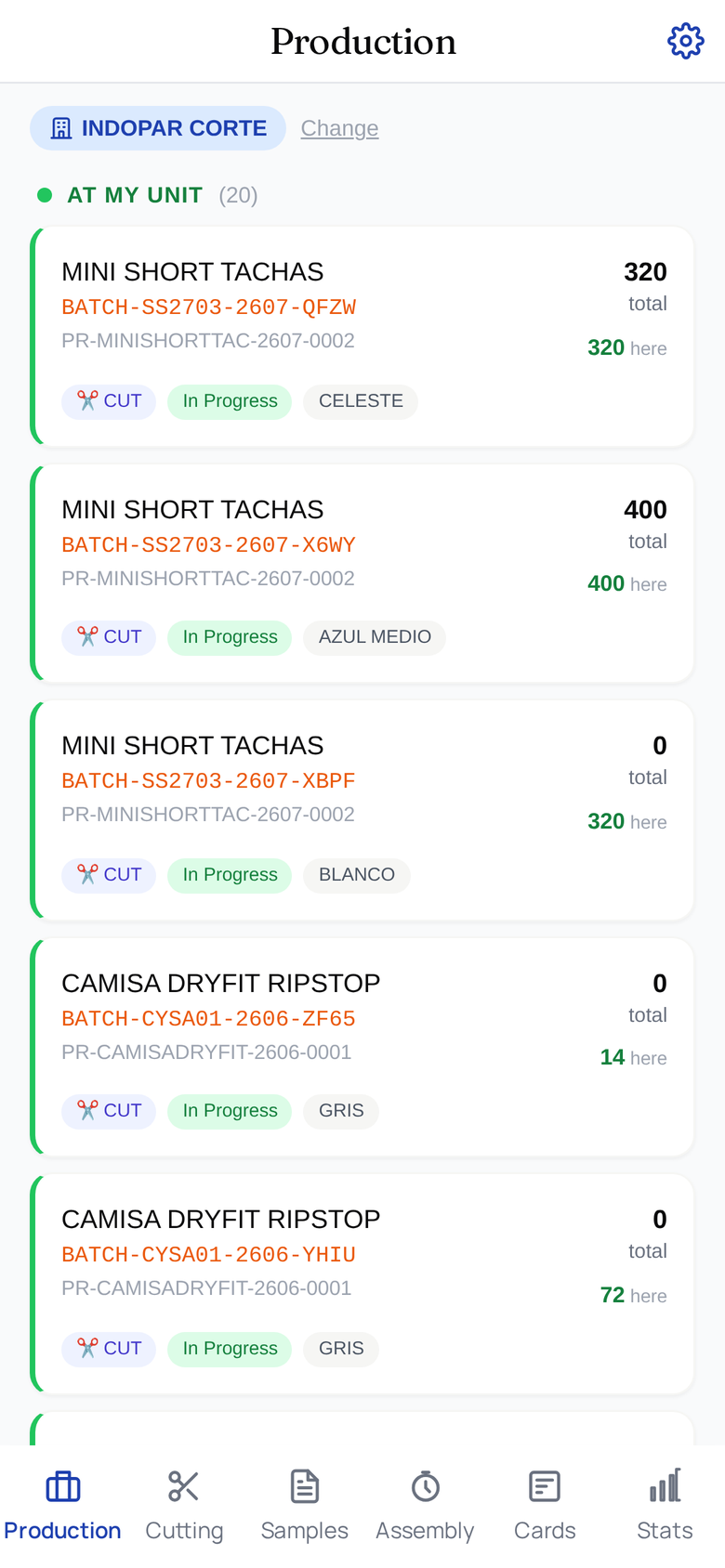
Six tabs in the bar at the bottom, plus Settings:
- Production (Pipeline) — the default landing. The list of active Production Batches the user is responsible for, with status, current operation, and quick actions.
- Machines — the unit's Work Centers, and the floor grid of machines on each one, coloured by health. Tap a machine for its detail, its repair history and upcoming maintenance, and to report or resolve a breakdown. See Machines and repairs.
- Sampling — list, create, and detail views for Samples. A sample room can request, mark in-production, sent, approved or rejected without ever opening the Desk.
- Operations (Assembly) — list, create, and detail views for Assembly tasks. Configurable for shops that assign operations to operators by name.
- Cards (Batch Cards) — list and create views for Batch Cards. End-of-shift wrap-up the supervisor fills in before going home. Hidden for plain Manufacturing Users, since assigning a card to someone else is a manager's job.
- Stats — at-a-glance numbers for the unit the supervisor is responsible for: units done today, units done this week, defect rate, hours logged.
- Settings — user, language, theme, sync controls.
How it syncs with the Desk
Everything the App does is talking to the same database the Desk talks to. There's no separate data store. A handoff posted from the App shows up immediately in the Operation Ledger on the Desk; a Batch status change posted from the Desk shows up on the next refresh in the App.
That means:
- No data duplication. One source of truth.
- No reconciliation overhead. What happens in one place is visible everywhere.
- No offline mode in the traditional sense — the App needs network for posting. It buffers gracefully on flaky connections, but it's not designed as a long-offline tool.
Login flow
The App uses the same user accounts as the Desk. Log in once, and the session persists. Each posted entry is attributed to the logged-in user, exactly as it would be on the Desk.
Sensible practice: give each supervisor their own user. The audit trail is only useful if you can tell who did what.
What to do next
The App is best understood by using it. Install it on a device, walk a Production Batch through a couple of operations, watch the Operation Ledger update on the Desk in real time. Once you've done it once, the rest is intuitive.
For the cutting room's own app, see Cutting App. For the analytical views meant for the Desk, head to Dashboards.