Material Preparation
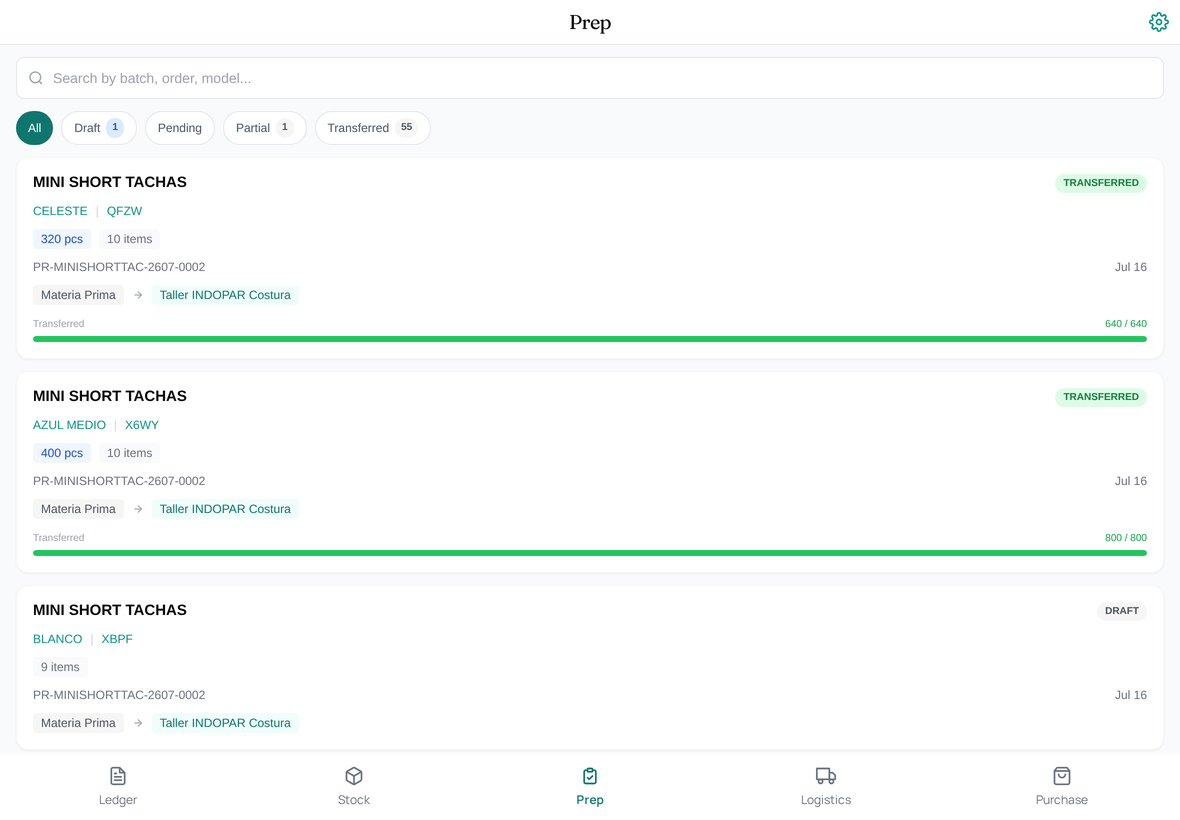
The Prep view is where most warehouse shifts start. It's the dashboard of Material Requests waiting to be acted on — typically auto-created by Production Batches that have started but not yet had their materials moved.
What the Prep dashboard shows
Open the app, tap Prep, and you see:
- Active Material Requests — every MR in Submitted state that hasn't been fully transferred, with priority, target warehouse, source Production Batch, item count, and age.
- Sort and filter — by Production Batch, by target warehouse, by age, by item shortage status.
The default sort is by age — oldest MR first — so the team naturally clears the queue chronologically.
Working an MR
Tap an MR to open it. The MR detail shows:
- The Production Batch it came from, and the target warehouse it's destined for.
- The item list: each item with required quantity, current stock at source, and any shortages flagged.
- Actions: swap an item, add an item, remove an item, or post the transfer.
Swapping or substituting items
If a supplier shipped a substitute (different lot, slightly different spec), the app lets you swap the item on the MR before transfer. Pick the substitute Item Code; GarmentFlow carries the substitution into the resulting Stock Entry and into the linked Production Batch's materials, so the BOM is honest about what actually got used.
Useful for: lot substitutions, color matching when one variant is short, last-minute trim swaps.
Adding or removing items
Add an item if the production team has flagged something missing from the BOM that they actually need. Remove an item if the BOM is wrong and the team has decided to skip a component for this batch (rare; usually means the BOM should be corrected too).
Both actions are tracked in the audit trail so the desk-side reviewer can see what changed and why.
Posting the transfer
When the gathered materials match the MR, tap Transfer. The app:
- Confirms quantities for each item.
- Creates a Stock Entry of type Material Transfer with source = the MR's source warehouse, target = the MR's target warehouse.
- Submits the Stock Entry.
- Updates the MR status (Issued or Partially Received depending on whether everything was moved).
- Updates the Production Batch's Materials section — transferred_qty now reflects the physical movement.
The Stock Ledger now shows the move. The Production Batch knows it. The materials are at the target warehouse, ready for the operation to start.
A working example
Morning shift, 8am. The Prep view shows four MRs from yesterday evening's Batch starts. The team picks them up in order:
- MR-001 → Line A Warehouse. 525m fleece, 1100m rib trim, 1000 cords. Team gathers from the fabric racks and trims shelves, verifies quantities, posts the Transfer. Done at 8:20.
- MR-002 → Wash Drum 2 Warehouse. Just 200 polybags. Tap, transfer, done at 8:23.
- MR-003 → Finishing Bench 4 Warehouse. Labels and hangtags. The hangtags are short — only 480 against the 500 needed. The team posts a partial transfer; the MR status moves to Partially Received; an item shortage alert goes to the brand contact.
- MR-004 → Line B Warehouse. Reordered fabric still hasn't arrived. Team marks the MR as Held with reason "fabric short — PO-202 due tomorrow."
In thirty minutes, three batches are unblocked and one is honestly held. The desk-side team can see all four states without anyone having to call anyone.
What to do next
Once materials are at the target warehouse, the operations team takes over. To track their movements, head to Recording movements via the ledger.